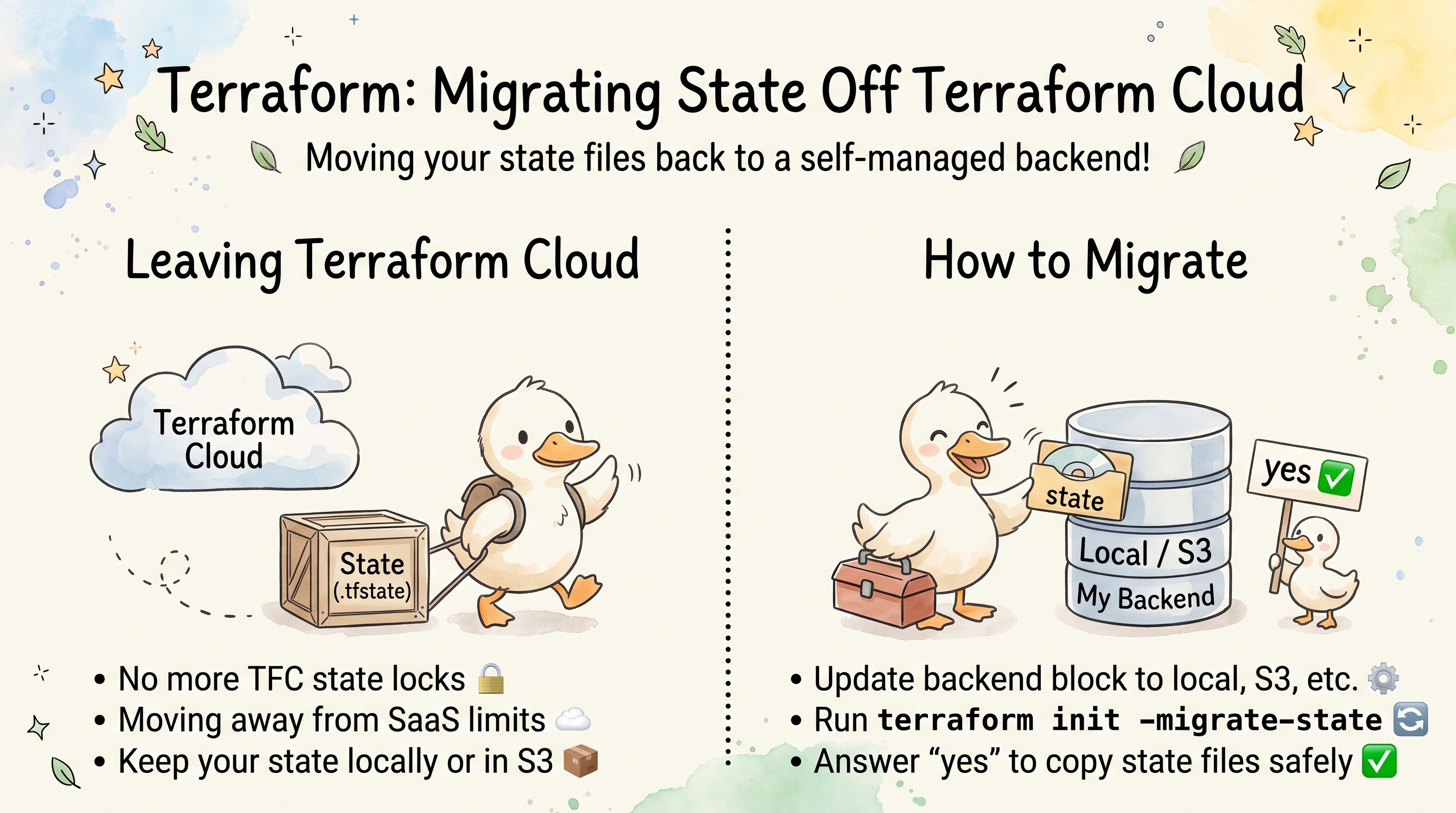
Migrating State Off HCP Terraform (Terraform Cloud)
Overview
HCP Terraform (called Terraform Cloud until 2024, TFC below) stores state data remotely in its workspaces. If you need to migrate away from TFC to another backend — whether local, S3, Azure Storage, or GCS — you’ll find that terraform init won’t handle the migration automatically. As of Terraform 1.16, the CLI still does not support migrating state from the cloud block to another backend. This article walks through the manual process.
The Problem
When you try the standard migration approach (update backend config, run terraform init), Terraform returns an error:
$ terraform init

Initializing the backend...
Migrating from HCP Terraform to backend "azurerm".
╷
│ Error: Migrating state from HCP Terraform or Terraform Enterprise to another backend is not
│ yet implemented.
│
│ Please use the API to do this: https://developer.hashicorp.com/terraform/cloud-docs/api-docs/state-versions
╵
This happens regardless of whether you’re migrating to local, S3, azurerm, GCS, or any other backend. You need to perform the migration manually.
How Local State and Workspaces Work
Before migrating, it helps to understand how Terraform organizes state data locally:
- Default workspace — state lives in
terraform.tfstatein the configuration directory - Non-default workspaces — each workspace gets a subdirectory under
terraform.tfstate.d/(created when you create the first non-default workspace) - Active workspace — tracked in
.terraform/environment(a single line with the workspace name;terraform workspace selectsimply changes this entry) - Workspace listing —
terraform workspace listreads subdirectories insideterraform.tfstate.dand adds the default workspace automatically - Backend reference — stored in
.terraform/terraform.tfstate
Example directory structure with development and production workspaces:
.
├── terraform.tfstate.d/
│   ├── development/
│   │   └── terraform.tfstate
│   └── production/
│       └── terraform.tfstate
└── .terraform/
    ├── environment           # Contains the active workspace name
    └── terraform.tfstate     # Backend configuration reference
Migrating to the Local Backend
Steps
- Pull state data from Terraform Cloud
- Create the local workspace directory structure
- Remove the old backend reference
- Update configuration to remove the
cloudblock - Run
terraform init - Select the workspace, then verify with
terraform plan
Single Workspace
# Create workspace directory
mkdir -p terraform.tfstate.d/<workspace-name>

# Pull state data from TFC and save locally
terraform state pull > terraform.tfstate.d/<workspace-name>/terraform.tfstate

# Remove the backend reference that points to TFC
mv .terraform/terraform.tfstate .terraform/terraform.tfstate.old
Then remove the cloud block from your Terraform configuration:
terraform {
  # Remove this entire block:
  # cloud {
  #   organization = "my-org"
  #   workspaces {
  #     name = "my-workspace"
  #   }
  # }
}
Finally, reinitialize and select the workspace the state was saved under:
terraform init
terraform workspace select <workspace-name>
Don’t skip the select: after init the current workspace can be default, which has no state, and terraform plan then wants to create everything again (Plan: 1 to add in a test with one resource, No changes after selecting the workspace). Check with terraform workspace show.
Verify with a plan:
terraform plan
# Should show no changes if migration was successful
Multiple Workspaces
If you have multiple TFC workspaces using the same configuration, repeat the state pull for each:
mkdir -p terraform.tfstate.d/development
mkdir -p terraform.tfstate.d/production

# Switch to each workspace and pull its state
terraform workspace select development
terraform state pull > terraform.tfstate.d/development/terraform.tfstate

terraform workspace select production
terraform state pull > terraform.tfstate.d/production/terraform.tfstate

# Clean up and reinitialize
mv .terraform/terraform.tfstate .terraform/terraform.tfstate.old
# Remove cloud block from config
terraform init

# Select each workspace and check it
terraform workspace select development && terraform plan
terraform workspace select production && terraform plan
Migrating to a Remote Backend (S3, AzureRM, GCS)
The process is similar — you pull state from TFC and upload it to the new backend manually.
Migrating to S3
# Pull state from TFC
terraform state pull > statedata

# Upload to S3 (adjust key for workspace naming convention)
aws s3 cp statedata s3://my-terraform-state/prod/terraform.tfstate

# Remove old backend reference
mv .terraform/terraform.tfstate .terraform/terraform.tfstate.old
Update configuration — remove cloud block, add S3 backend:
terraform {
  backend "s3" {
    bucket         = "my-terraform-state"
    key            = "prod/terraform.tfstate"
    region         = "us-east-1"
    use_lockfile   = true   # S3-native locking; replaces dynamodb_table (deprecation warning since Terraform 1.15)
    encrypt        = true
  }
}
Reinitialize:
terraform init
terraform plan
# Should show no changes
Migrating to AzureRM
The azurerm backend names workspace blobs by appending env:<workspace-name> to the key. For example, with key = "webapp" and workspace production, the blob name is webappenv:production.
# Pull state from TFC
terraform state pull > statedata

# Upload to Azure Storage
az storage blob upload \
  --account-name mystorageaccount \
  --container-name terraform-state \
  --name "webappenv:production" \
  --file statedata

# Remove old backend reference
mv .terraform/terraform.tfstate .terraform/terraform.tfstate.old
Update configuration — remove cloud block, add azurerm backend:
terraform {
  backend "azurerm" {
    resource_group_name  = "terraform-rg"
    storage_account_name = "mystorageaccount"
    container_name       = "terraform-state"
    key                  = "webapp"
  }
}
Reinitialize and select the workspace the blob belongs to:
terraform init
terraform workspace select production
terraform plan
Migrating to GCS
# Pull state from TFC
terraform state pull > statedata

# Upload to GCS (gcloud storage replaces the legacy gsutil cp)
gcloud storage cp statedata gs://my-terraform-state/prod/default.tfstate

# Remove old backend reference
mv .terraform/terraform.tfstate .terraform/terraform.tfstate.old
Update configuration:
terraform {
  backend "gcs" {
    bucket = "my-terraform-state"
    prefix = "prod"
  }
}
Reinitialize:
terraform init
terraform plan
Two-Stage Migration (Alternative Approach)
If you’re unsure about the workspace naming conventions of your target backend, a safer approach is:
- Migrate from TFC → local (as described above)
- Migrate from local → target backend using
terraform init -migrate-state
The second step uses Terraform’s built-in migration, which handles workspace layout automatically:
# After successfully migrating to local:
# Update backend config to target (e.g., S3)
terraform init -migrate-state
This avoids having to manually name blobs/keys in the target backend’s workspace format.
Verifying the Migration
After migration, always verify:
# Check state is accessible
terraform state list

# Confirm no unexpected changes
terraform plan

# Verify workspace (if applicable)
terraform workspace show
If terraform plan shows no changes, the migration was successful. If it wants to recreate resources, something went wrong with the state data — restore from your backup and retry.
Common Issues
“Backend configuration changed” Error
If you get prompted about backend changes during terraform init, answer yes to reinitialize. If you get an error about migrating from cloud, you missed the step of removing .terraform/terraform.tfstate.
State Serial Number Conflicts
aws s3 cp, az storage blob upload and gcloud storage cp skip all of Terraform’s checks (serial and lineage) and silently overwrite whatever is already at that location. Make sure the target location is empty before uploading.
Workspace Not Found After Migration
If terraform workspace list doesn’t show your workspace after migrating to local, check that:
- The directory exists under
terraform.tfstate.d/ - The directory name matches exactly (case-sensitive)
The listing only needs the directory: an empty one shows up too. If the workspace is listed but terraform plan wants to create everything, the terraform.tfstate inside it is missing or empty, or a different workspace is selected.
Summary
| Step | Local Backend | Remote Backend (S3/Azure/GCS) |
|---|---|---|
| 1. Pull state | terraform state pull > ... | terraform state pull > statedata |
| 2. Store state | Save to terraform.tfstate.d/<workspace>/terraform.tfstate | Upload to target (aws s3 cp / az storage / gcloud storage) |
| 3. Clean backend ref | mv .terraform/terraform.tfstate .terraform/terraform.tfstate.old | Same |
| 4. Update config | Remove cloud block | Remove cloud block, add new backend |
| 5. Reinitialize | terraform init | terraform init |
| 6. Verify | terraform workspace select, then terraform plan | terraform plan (select the workspace first if the state isn’t in default) |
The key insight: terraform state pull works regardless of backend — it fetches the current state from wherever it’s stored. Combined with manual upload to the new backend and a clean reinitialization, you can migrate off Terraform Cloud to any backend.
Comments