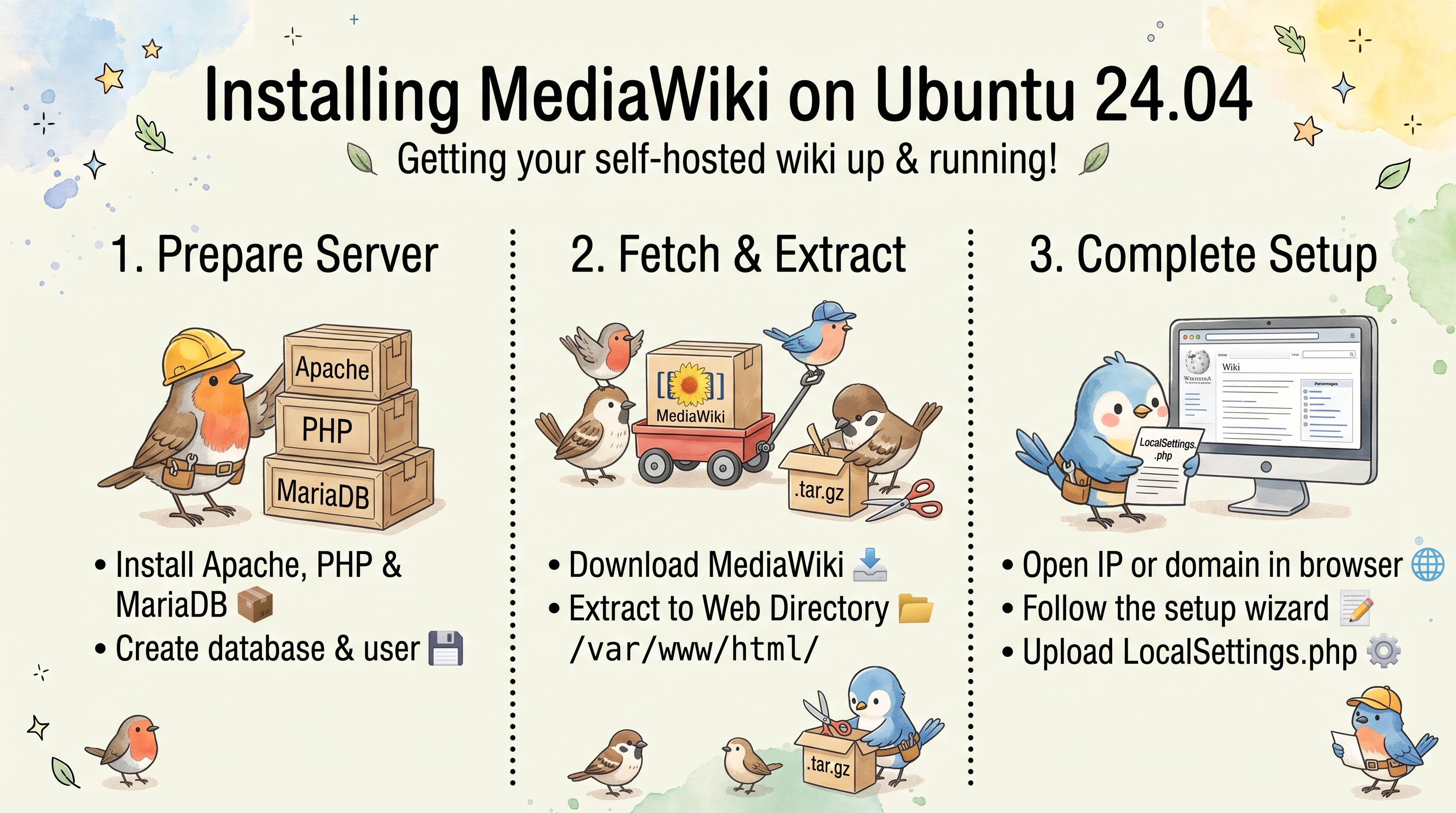
Installing MediaWiki on Ubuntu
This guide installs MediaWiki with Apache, PHP and MariaDB on Ubuntu 24.04 (PHP 8.3). It covers the firewall, PHP limits for uploads, the database, a Let’s Encrypt certificate, and common extensions (MsUpload, VisualEditor, SyntaxHighlight, WikiEditor, PdfHandler).
Overview
| Component | Purpose |
|---|---|
Apache (apache2) + libapache2-mod-php | Web server running PHP |
| PHP 8.1+ (8.3 on Ubuntu 24.04) | MediaWiki runtime |
| MariaDB | Database backend |
| ImageMagick | Thumbnails for uploaded images |
| Inkscape | Rendering SVG files to PNG |
| poppler-utils + Ghostscript | PDF metadata and text (poppler) and page thumbnails (Ghostscript) for the PdfHandler extension |
| git | Installing extensions not bundled with MediaWiki |
| Certbot | Free HTTPS certificate from Let’s Encrypt |
The examples use /var/www/html/wiki, so the wiki ends up at https://<your-domain>/wiki.
1. Install Packages
sudo apt update
sudo apt install apache2 mariadb-server php php-mysql libapache2-mod-php php-xml php-mbstring php-apcu php-intl imagemagick inkscape php-gd php-cli php-curl php-bcmath git poppler-utils ghostscript
2. Verify the Status
systemctl is-enabled apache2
systemctl status apache2

systemctl is-enabled mariadb
systemctl status mariadb

php -v
php -m | grep -Ei 'intl|mbstring|xml|apcu|mysqli|gd'
php -v shows the version you need for the php.ini path in step 4. MediaWiki 1.43 requires PHP 8.1 or newer.
3. Set Up the UFW Firewall
Allow SSH before enabling UFW, or you’ll lock yourself out of a remote server.
sudo ufw allow OpenSSH
sudo ufw allow "Apache Full"       # ports 80 and 443
sudo ufw enable
sudo ufw status
The Apache Full profile is installed by the apache2 package (sudo ufw app info "Apache Full" shows ports 80,443/tcp).
4. Edit the PHP Configuration
Raise the limits so larger files can be uploaded. The path contains the PHP version from php -v (8.3 on Ubuntu 24.04, 8.1 on 22.04):
sudo vi /etc/php/8.3/apache2/php.ini
Set these values (no quotes in php.ini):
upload_max_filesize = 50M
post_max_size = 50M
memory_limit = 512M
max_execution_time = 360
Or apply them without an editor:
PHPINI=/etc/php/8.3/apache2/php.ini
sudo sed -i -E \
  -e 's/^;?upload_max_filesize = .*/upload_max_filesize = 50M/' \
  -e 's/^;?post_max_size = .*/post_max_size = 50M/' \
  -e 's/^;?memory_limit = .*/memory_limit = 512M/' \
  -e 's/^;?max_execution_time = .*/max_execution_time = 360/' \
  "$PHPINI"
grep -E '^(upload_max_filesize|post_max_size|memory_limit|max_execution_time)' "$PHPINI"

sudo systemctl restart apache2
post_max_size must be at least as large as upload_max_filesize, otherwise big uploads fail without a clear error.
5. Configure the MariaDB Server
sudo mariadb-secure-installation
Answer the prompts: set a root password (or keep socket authentication), remove anonymous users, disallow remote root login, remove the test database.
On Ubuntu, root logs in through the Unix socket, so sudo is enough (add -u root -p only if you switched root to password authentication):
sudo mariadb
CREATE DATABASE mediawikidb;
CREATE USER 'mediawiki'@'localhost' IDENTIFIED BY '<secure-password>';
GRANT ALL PRIVILEGES ON mediawikidb.* TO 'mediawiki'@'localhost';
FLUSH PRIVILEGES;
EXIT;
The wiki user only needs rights on its own database; it doesn’t need WITH GRANT OPTION. (FLUSH PRIVILEGES isn’t required after CREATE USER/GRANT, but it does no harm.)
6. Download MediaWiki
Use the current LTS release unless you need a newer feature. Check mediawiki.org/wiki/Download for the latest version; 1.43 is the LTS series (supported until December 2027).
MW_SERIES=1.43
MW_VERSION=1.43.11

cd /var/www/html
sudo curl -O https://releases.wikimedia.org/mediawiki/${MW_SERIES}/mediawiki-${MW_VERSION}.tar.gz
sudo tar zxf mediawiki-${MW_VERSION}.tar.gz && sudo mv mediawiki-${MW_VERSION} wiki
sudo rm mediawiki-${MW_VERSION}.tar.gz
sudo chown -R www-data:www-data wiki
7. Apache Virtual Host
Certbot needs a virtual host with a ServerName that matches your domain. Point the domain’s DNS A record at the server first.
sudo tee /etc/apache2/sites-available/wiki.conf << 'EOF'
<VirtualHost *:80>
    ServerName domain.ro
    DocumentRoot /var/www/html

    <Directory /var/www/html/wiki>
        AllowOverride All
        Require all granted
    </Directory>

    ErrorLog ${APACHE_LOG_DIR}/wiki_error.log
    CustomLog ${APACHE_LOG_DIR}/wiki_access.log combined
</VirtualHost>
EOF

sudo a2ensite wiki.conf
sudo a2dissite 000-default.conf
sudo apache2ctl configtest && sudo systemctl reload apache2
Replace domain.ro with your domain.
8. Configure the Certificate
sudo apt install certbot python3-certbot-apache
sudo certbot --apache -d domain.ro
Certbot creates an HTTPS virtual host, offers to redirect HTTP to HTTPS, and installs a systemd timer that renews the certificate. Check renewal with:
sudo certbot renew --dry-run
9. Configure MediaWiki
Open the installer in a browser:
https://domain.ro/wiki
- Click set up the wiki, choose the language.
- Database: host
localhost, namemediawikidb, usermediawiki, and the password from step 5. - Create the wiki admin account and pick the options you want (uploads, extensions, private wiki).
- At the end, download the generated
LocalSettings.phpand copy it to the server. Runscpon your own computer, the rest on the server:
# on your computer
scp LocalSettings.php <user>@domain.ro:/tmp/

# on the server
sudo mv /tmp/LocalSettings.php /var/www/html/wiki/
sudo chown www-data:www-data /var/www/html/wiki/LocalSettings.php
sudo chmod 640 /var/www/html/wiki/LocalSettings.php
Check that $wgServer in LocalSettings.php is https://domain.ro, not http://.
Command-line alternative to the web installer:
cd /var/www/html/wiki
sudo -u www-data php maintenance/run.php install \
  --dbname=mediawikidb --dbuser=mediawiki --dbpass='<secure-password>' \
  --server='https://domain.ro' --scriptpath=/wiki \
  --pass='<admin-password>' 'My Wiki' 'Admin'
sudo chmod 640 LocalSettings.php
The installer connects to MariaDB on localhost by default and writes LocalSettings.php itself (with mode 664, hence the chmod). The admin password must be at least 10 characters.
10. MsUpload Extension
MsUpload adds drag-and-drop uploads of several files at once to the editor. It isn’t bundled, so clone it into the wiki’s extensions/ directory. Use the branch that matches your MediaWiki version (REL1_43 for 1.43): the default branch targets the development version and may not work with a release.
cd /var/www/html/wiki/extensions/
sudo git clone -b REL1_43 https://gerrit.wikimedia.org/r/mediawiki/extensions/MsUpload
sudo chown -R www-data:www-data MsUpload
Then add to LocalSettings.php (not to the shell). The installer already writes $wgEnableUploads = false; unless you enabled uploads; change that line, or add this block after it, since the last assignment wins:
wfLoadExtension( 'MsUpload' );

# MsUpload needs uploads enabled
$wgEnableUploads = true;
$wgFileExtensions = array_merge( $wgFileExtensions, [ 'pdf', 'docx', 'xlsx', 'svg' ] );
Open Special:Version on your wiki to check that the extension is installed.
11. LocalSettings.php
Useful additions at the end of /var/www/html/wiki/LocalSettings.php. VisualEditor, SyntaxHighlight, WikiEditor and PdfHandler ship with the MediaWiki tarball, so they only need to be loaded.
wfLoadExtension( 'VisualEditor' );

wfLoadExtension( 'SyntaxHighlight_GeSHi' );

wfLoadExtension( 'WikiEditor' );

wfLoadExtension( 'PdfHandler' );

# Largest image (in pixels) that will be scaled for thumbnails
$wgMaxImageArea = 6.4e7;

# Thumbnails with ImageMagick (the installer usually sets these two already)
$wgUseImageMagick = true;
$wgImageMagickConvertCommand = '/usr/bin/convert';

# SVG rendering with Inkscape 1.x: the built-in 'inkscape' command still uses
# the 0.x options (-z -f -e), which Inkscape 1.2 on Ubuntu 24.04 rejects
$wgSVGConverters['inkscape'] = '$path/inkscape -w $width -o $output $input';
$wgSVGConverter = 'inkscape';

# Private wiki: disable reading, editing and sign-up for anonymous users
$wgGroupPermissions['*']['read'] = false;
$wgGroupPermissions['*']['edit'] = false;
$wgGroupPermissions['*']['createaccount'] = false;
Keep the single quotes around the $wgSVGConverters value: $path, $width, $input and $output are placeholders MediaWiki fills in, and double quotes would make PHP expand them. With read disabled, MediaWiki still allows the login page, so users can sign in. Changes to LocalSettings.php take effect on the next page load; no restart is needed.
Troubleshooting
| Symptom | Cause | Fix |
|---|---|---|
| Uploads over a few MB fail | PHP limits | Raise upload_max_filesize and post_max_size (step 4), restart Apache |
| “Could not open lock file” or upload errors | images/ not writable | sudo chown -R www-data:www-data /var/www/html/wiki/images |
| Database connection failed | Wrong credentials or MariaDB down | systemctl status mariadb; compare $wgDBuser/$wgDBpassword with step 5 |
| Installer starts again | LocalSettings.php missing or unreadable | Check its path, owner and permissions (step 9) |
| Mixed-content warnings, broken CSS | $wgServer still http:// | Set $wgServer = 'https://domain.ro'; |
| Extension breaks the wiki | Extension branch doesn’t match MediaWiki version | Re-clone with -b REL1_43 |
| Code blocks not highlighted | SyntaxHighlight can’t run its bundled pygmentize | Check that python3 is installed and proc_open isn’t in disable_functions in php.ini |
SVG thumbnails fail with Unknown option -f | Built-in Inkscape 0.x command line | Override $wgSVGConverters['inkscape'] (step 11) |
| Can’t reach the site | Firewall or DNS | sudo ufw status; dig +short domain.ro |
Comments