apt vs apt-get: Differences and When to Use Each
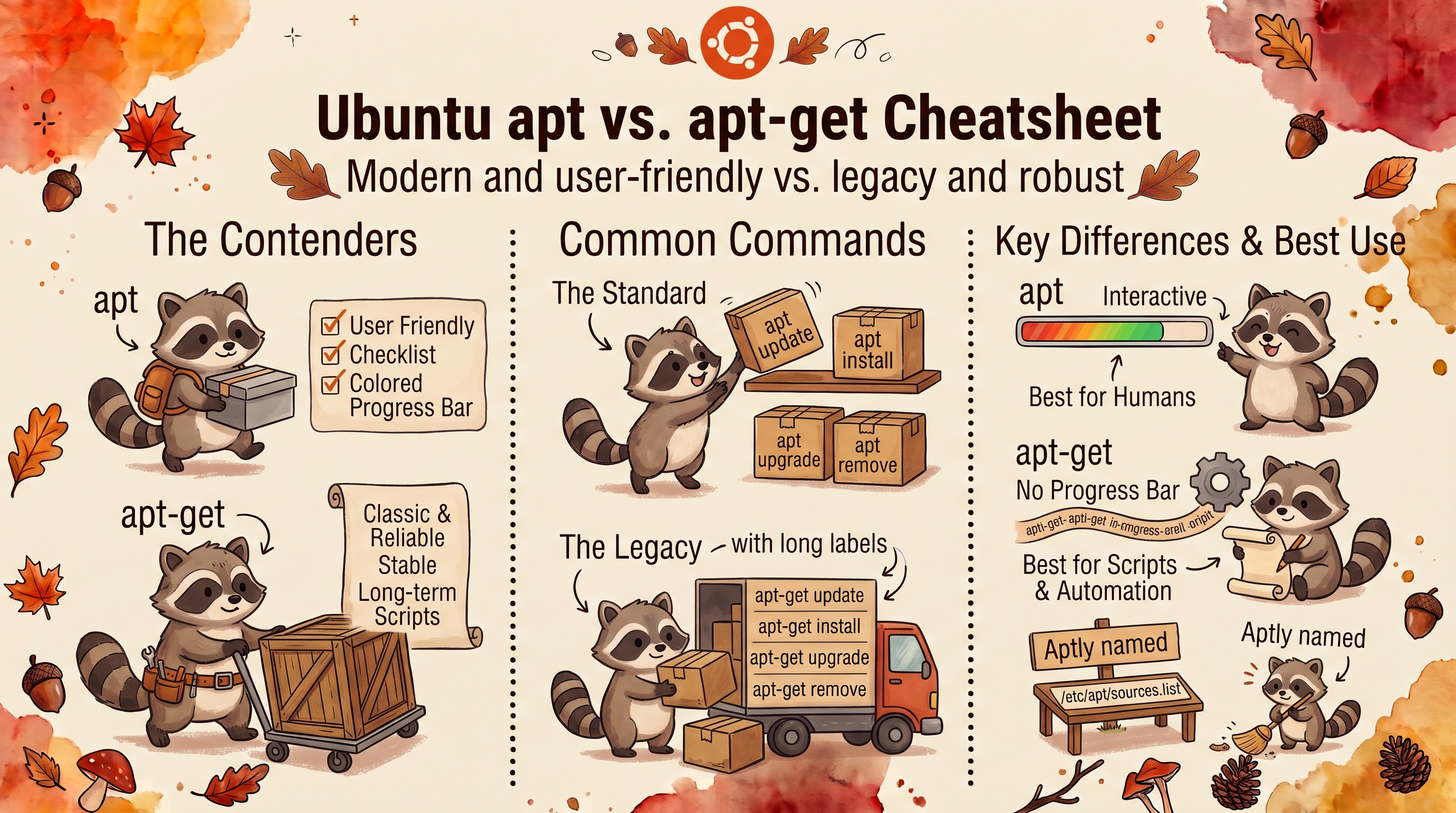
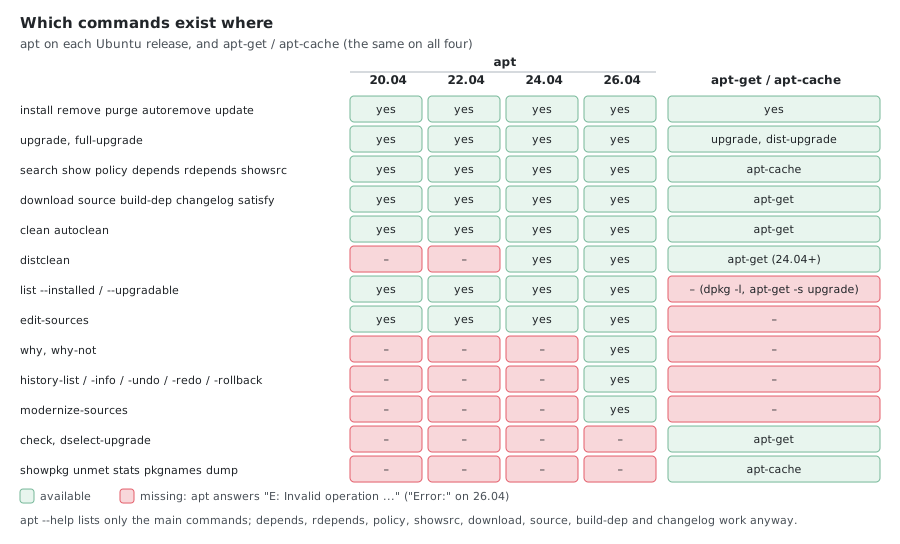
apt and apt-get are both command-line front ends of APT, the package manager of Debian and Ubuntu. They use the same library, the same repositories and the same configuration, but apt is built for people at a terminal and apt-get (with apt-cache) for scripts. Everything below was run on Ubuntu 20.04 (apt 2.0.10), 22.04 (2.4.14), 24.04 (2.8.3) and 26.04 (3.2.0).
Key Difference
apt: for interactive use. Progress bar, colors, friendlier defaults. Added in APT 1.0 (April 2014), first shipped in Ubuntu 14.04 and Debian 8.apt-getandapt-cache: for scripts and automation, with output and behaviour kept stable across releases. Part of APT since its first upload in 1998.
Both call the same libapt-pkg library. Neither replaces the other.
Command Mapping
| Task | apt | apt-get / apt-cache |
|---|---|---|
| Update package index | apt update | apt-get update |
| Install a package | apt install pkg | apt-get install pkg |
| Remove a package | apt remove pkg | apt-get remove pkg |
| Purge a package | apt purge pkg | apt-get purge pkg |
| Upgrade installed packages | apt upgrade | apt-get upgrade --with-new-pkgs |
| Full upgrade (may remove pkgs) | apt full-upgrade | apt-get dist-upgrade |
| Autoremove unused deps | apt autoremove | apt-get autoremove |
| Search for packages | apt search keyword | apt-cache search keyword |
| Show package info | apt show pkg | apt-cache show --no-all-versions pkg |
| Show package policy | apt policy pkg | apt-cache policy pkg |
| List installed packages | apt list --installed | dpkg -l |
| List upgradable packages | apt list --upgradable | apt-get -s upgrade |
| Download without install | apt download pkg | apt-get download pkg |
| Clean package cache | apt clean | apt-get clean |
| Autoclean old cache | apt autoclean | apt-get autoclean |
| Fix broken dependencies | apt --fix-broken install | apt-get install -f |
| Edit sources.list | apt edit-sources | (no equivalent) |
| Show package dependencies | apt depends pkg | apt-cache depends pkg |
| Show reverse dependencies | apt rdepends pkg | apt-cache rdepends pkg |
| Show changelog | apt changelog pkg | apt-get changelog pkg |
| Build dependencies | apt build-dep pkg | apt-get build-dep pkg |
| Source download | apt source pkg | apt-get source pkg |
| Source package info | apt showsrc pkg | apt-cache showsrc pkg |
| Install what a dependency string needs | apt satisfy "pkg (>= 1.0)" | apt-get satisfy "pkg (>= 1.0)" |
| Simulate/dry-run | apt install -s pkg | apt-get install -s pkg |
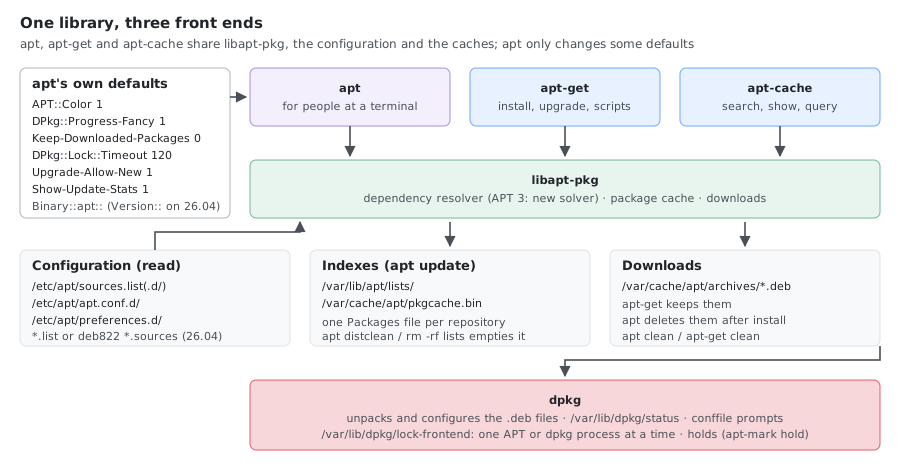
apt depends, rdepends, policy, showsrc, changelog, download, source and build-dep aren’t advertised by apt --help, but the apt(8) man page lists them and they work on all four releases. apt list accepts both --upgradable and --upgradeable. source, build-dep and showsrc need deb-src entries in the sources.
Behavioral Differences
Upgrade vs Upgrade
This is the most important difference:
| Command | Behavior |
|---|---|
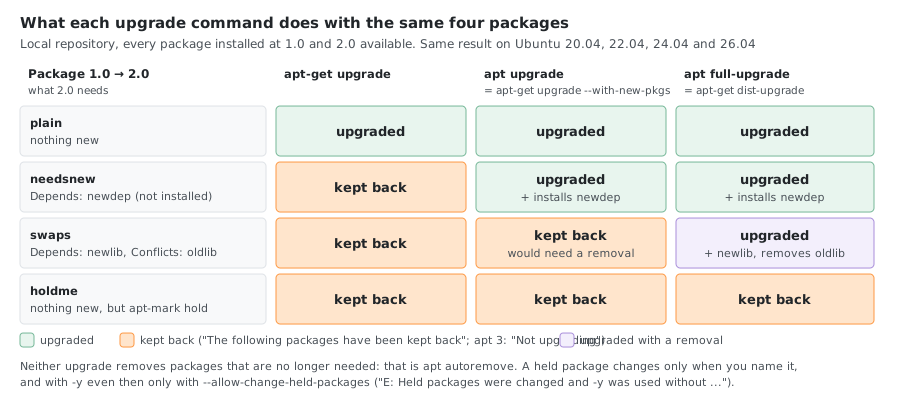
apt upgrade | Upgrades packages and installs new dependencies if needed, but never removes packages |
apt-get upgrade | Upgrades packages but skips any that need a new package (shows them as “kept back”) |
apt full-upgrade | Upgrades everything, may remove packages to resolve conflicts |
apt-get dist-upgrade | Same as apt full-upgrade |
Practical impact: After
apt-get upgrade, you may see “The following packages have been kept back.” Withapt upgrade, those packages get upgraded, unless that would need a removal. A typical case is a new kernel: the newlinux-image-*package is a new dependency of the meta package.
Neither upgrade removes packages that are no longer needed; both tools only list them (“The following packages were automatically installed and are no longer required”). Run autoremove for that:
sudo apt-get upgrade && sudo apt-get autoremove
Downloaded Packages
The one difference in what happens on disk: apt deletes the downloaded .deb files after a successful install, apt-get keeps them in /var/cache/apt/archives/. apt sets Binary::apt::APT::Keep-Downloaded-Packages "0" (on 26.04 it shows as Version::1.2::APT::Keep-Downloaded-Packages "0"):
apt-get install -y hello; ls /var/cache/apt/archives/*.deb
# /var/cache/apt/archives/hello_2.10-3build1_arm64.deb

apt install -y hello; ls /var/cache/apt/archives/*.deb
# (nothing)
To keep them with apt too: apt -o APT::Keep-Downloaded-Packages=true install pkg. The official Docker images clean the cache for both tools (/etc/apt/apt.conf.d/docker-clean).
Dependencies, Recommends and Suggests
There is no difference: both use the same resolver and the same settings.
| Behavior | apt | apt-get |
|---|---|---|
| Installs required dependencies | Yes | Yes |
Installs Recommends (APT::Install-Recommends "1") | Yes | Yes |
Installs Suggests (APT::Install-Suggests "0") | No, only lists them | No, only lists them |
apt install -s nginx and apt-get install -s nginx picked the same 10 packages on 24.04, and listed the same “Suggested packages”. APT 3.0 (Ubuntu 25.04+, 26.04) brought a new solver, shown as Solving dependencies..., and apt-get uses it too.
Search
apt search prints two lines per package (name, version and architecture, then the description) with the name highlighted on a terminal; apt-cache search prints one name - description line per package, which is easier to parse.
Output Format
apt install hello on Ubuntu 24.04, in a terminal:
Reading package lists... Done
Building dependency tree... Done
Reading state information... Done
The following NEW packages will be installed:
  hello
0 upgraded, 1 newly installed, 0 to remove and 4 not upgraded.
Need to get 25.2 kB of archives.
After this operation, 147 kB of additional disk space will be used.
Get:1 http://ports.ubuntu.com/ubuntu-ports noble/main arm64 hello arm64 2.10-3build1 [25.2 kB]
Fetched 25.2 kB in 0s (75.7 kB/s)
Selecting previously unselected package hello.
(Reading database ... 4414 files and directories currently installed.)
Preparing to unpack .../hello_2.10-3build1_arm64.deb ...
Unpacking hello (2.10-3build1) ...
Setting up hello (2.10-3build1) ...
Progress: [ 60%] [##############################.......................]
The Progress: bar sits on the bottom line of the terminal while dpkg works, and the ... Done lines count up from 0%. apt-get install hello prints the same text, without the bar and the percentages.
On Ubuntu 26.04 (APT 3.x), apt has a new layout; apt-get keeps the old one:
Installing:
  hello

Summary:
  Upgrading: 0, Installing: 1, Removing: 0, Not Upgrading: 4
  Download size: 25.6 kB
  Space needed: 147 kB / 74.9 GB available

Get:1 http://ports.ubuntu.com/ubuntu-ports resolute/main arm64 hello arm64 2.10-5build1 [25.6 kB]
Fetched 25.6 kB in 0s (139 kB/s)
apt update ends with a summary line that apt-get update doesn’t print:
4 packages can be upgraded. Run 'apt list --upgradable' to see them.
Exclusive Features
Besides the commands marked (no equivalent) in the command mapping, only apt has:
| Feature | Command |
|---|---|
| List all versions | apt list --all-versions pkg |
| Progress bar | Automatic on a terminal |
| Colored output | Automatic on a terminal |
| Upgradable count after update | Shown at the end of apt update |
| Solver explanations, transaction history and undo, deb822 conversion | 26.04 only: why, history-*, modernize-sources (see APT 3 in Ubuntu 26.04) |
The other way round, apt-get check, apt-get dselect-upgrade and apt-cache showpkg, unmet, stats, pkgnames and dump have no apt version: apt answers E: Invalid operation check (Error: on 26.04). The grid under the command mapping shows all of them per release.
Output Stability
The apt(8) man page says the apt command line may change behaviour between versions, and recommends apt-get and apt-cache for scripts, because they keep backward compatibility as much as possible. apt also warns on stderr whenever its output doesn’t go to a terminal:
WARNING: apt does not have a stable CLI interface. Use with caution in scripts.
| Aspect | apt | apt-get |
|---|---|---|
| Output format | May change between releases (APT 3 changed it) | Stable across releases |
| Exit codes | 0 on success, 100 on errors | 0 on success, 100 on errors |
| Error prefix | E:, Error: from APT 3 (26.04) | E: |
| Progress display | Progress bar on a terminal; none when piped | Plain text |
| Color codes | On a terminal; none when piped | Never |
| Scripting safe | No | Yes |
Configuration Differences
Both read the same configuration (/etc/apt/apt.conf and /etc/apt/apt.conf.d/). apt changes some defaults through the Binary::apt:: scope (apt-config dump | grep Binary::apt): APT::Color "1", DPkg::Progress-Fancy "1", APT::Keep-Downloaded-Packages "0", DPkg::Lock::Timeout "120", APT::Get::Upgrade-Allow-New "1" (that’s the --with-new-pkgs) and APT::Cmd::Show-Update-Stats "1". On 26.04 the same values show up under Version::1.1::, Version::1.2:: and Version::2.0:: instead.
Color is only used on a terminal; piped output has none. Turning it off on a terminal depends on the release:
| 20.04 | 22.04 | 24.04 | 26.04 | |
|---|---|---|---|---|
NO_COLOR=1 apt ... | no | yes | yes | yes |
apt -o APT::Color=0 ... | no | no | yes | yes |
Binary::apt::APT::Color "0"; in /etc/apt/apt.conf.d/ | no | no | yes | yes |
APT::Color "false"; in /etc/apt/apt.conf.d/ | no | no | no | yes |
# Per command (22.04+)
NO_COLOR=1 apt list --installed

# Permanently (24.04+)
echo 'Binary::apt::APT::Color "0";' | sudo tee /etc/apt/apt.conf.d/99nocolor

# apt-get never uses color: no config needed
On 20.04 none of these switch it off; pipe the output (apt ... | cat) or use apt-get/apt-cache.
APT 3 in Ubuntu 26.04
Ubuntu 26.04 ships APT 3.2. For apt the changes are visible right away; apt-get mostly looks the same.
- New solver, used by both tools (
Solving dependencies...in the output). - New
aptlayout:Installing:,Upgrading:,Not upgrading:and aSummary:block instead of “The following NEW packages will be installed”; errors start withError:instead ofE:. apt why/apt why-notexplain the solver’s decision:
$ apt why oldlib
oldlib:arm64 is selected for install because:
1. swaps:arm64 is selected for install
2. swaps:arm64 is available in versions 1.0, 2.0
   [selected swaps:arm64=1.0 for install]
3. swaps:arm64=1.0 Depends oldlib
...
- Transaction history from
/var/log/apt/history.log, with undo:
$ apt history-list | tail -1
95  install -y hello         2026-10-23  08:44:31   Install   1

$ apt history-info 95
Transaction ID: 95
Start time: 2026-10-23  08:44:31
End time: 2026-10-23  08:44:31
Requested by:
Command line: apt install -y hello
Packages changed:
    Install hello:arm64 (2.10-5build1)

$ apt history-undo -y 95
Summary:
  Upgrading: 0, Installing: 0, Removing: 1, Not Upgrading: 0
  Freed space: 147 kB
Removing hello (2.10-5build1) ...
history-redo and history-rollback work the same way.
apt modernize-sourcesrewrites old one-line.listfiles into the deb822.sourcesformat, addsSigned-Bywhere it can, and keeps the originals as.list.bak:
$ cat /etc/apt/sources.list.d/old.sources
Types: deb
URIs: http://ports.ubuntu.com/ubuntu-ports/
Suites: resolute
Components: universe
Signed-By: /usr/share/keyrings/ubuntu-archive-keyring.gpg
Holding Packages
Neither apt nor apt-get holds packages; apt-mark does (it sets the dpkg selection to hold):
sudo apt-mark hold holdme     # holdme set on hold.
apt-mark showhold             # holdme
sudo apt-mark unhold holdme   # Canceled hold on holdme.
A held package is kept back by upgrade, apt upgrade and even full-upgrade / dist-upgrade (see the diagram above). Naming it explicitly still upgrades it, but with -y only if you allow it:
$ sudo apt-get install -y holdme
The following held packages will be changed:
  holdme
The following packages will be upgraded:
  holdme
1 upgraded, 0 newly installed, 0 to remove and 3 not upgraded.
E: Held packages were changed and -y was used without --allow-change-held-packages.
sudo apt-get install -y --allow-change-held-packages holdme goes through. For pinning a version or a repository instead of freezing a package, use /etc/apt/preferences.d/ (apt_preferences(5)).
Scripting Recipes
Upgradable packages, names only (the Inst lines of a simulation, stable across releases):
apt-get -s upgrade --with-new-pkgs | awk '/^Inst/ {print $2}'
newdep
needsnew
plain
With old and new version (only packages already installed, which have [old] in the line):
apt-get -s upgrade --with-new-pkgs | awk '/^Inst/ && $3 ~ /^\[/ {gsub(/[][(]/, ""); print $2, $3, "->", $4}'
needsnew 1.0 -> 2.0
plain 1.0 -> 2.0
Is a package installed, and which version:
dpkg-query -W -f='${Status}' plain 2>/dev/null | grep -q 'install ok installed' && echo installed
dpkg-query -W -f='${Version}\n' plain            # 1.0
apt-cache policy plain | awk '/Candidate:/ {print $2}'   # 2.0
dpkg-query exits with 1 (no packages found matching ...) for a package it has never seen, so 2>/dev/null and the grep keep the test quiet.
No prompts in scripts: DEBIAN_FRONTEND=noninteractive answers debconf questions with their defaults, and -y answers APT’s own question. Neither covers changed configuration files, which are dpkg’s business. When a package ships a new version of a conffile you edited, dpkg asks:
Configuration file '/etc/plain.conf'
 ==> Modified (by you or by a script) since installation.
 ==> Package distributor has shipped an updated version.
   What would you like to do about it ?  Your options are:
    Y or I  : install the package maintainer's version
    N or O  : keep your currently-installed version
 ...
 The default action is to keep your current version.
Without a terminal there is nobody to answer, and the upgrade fails (same on all four releases, DEBIAN_FRONTEND=noninteractive set):
*** plain.conf (Y/I/N/O/D/Z) [default=N] ? dpkg: error processing package plain (--configure):
 end of file on stdin at conffile prompt
Errors were encountered while processing:
 plain
E: Sub-process /usr/bin/dpkg returned an error code (1)
apt-get exits with 100 and the package is left unpacked but not configured (iU in dpkg -l). Tell dpkg what to do instead:
export DEBIAN_FRONTEND=noninteractive
apt-get install -y -o Dpkg::Options::=--force-confdef -o Dpkg::Options::=--force-confold pkg  # keep yours, new one -> .dpkg-dist
apt-get install -y -o Dpkg::Options::=--force-confnew pkg                                     # take the new one, yours -> .dpkg-old
--force-confdef takes the default answer (keep your edited file, ==> Keeping old config file as default.); --force-confold covers the cases without a default. To repair a package that already failed this way: sudo dpkg --force-confdef --force-confold --configure -a.
Exit Codes
| Situation | Exit code |
|---|---|
Success, including -s simulations and “is already the newest version” | 0 |
Answering “no” (apt-get upgrade --assume-no, prints Abort.) | 1 |
Package not found, lock held, held package changed with -y, a dpkg error (such as the conffile prompt above) | 100 |
apt-get update with a repository that can’t be reached | 0, with W: Failed to fetch ... and W: Some index files failed to download |
The last row matters in CI: a failed mirror doesn’t fail apt-get update. With -o APT::Update::Error-Mode=any the same failure is printed as E: Failed to fetch ... and the exit code is 100 (on all four releases), which is what you want when a broken mirror should stop the job.
The dpkg Lock
Only one APT or dpkg process can change packages at a time. apt-get gives up immediately when another one holds the lock:
$ sudo apt-get install -y hello
E: Could not get lock /var/lib/dpkg/lock-frontend. It is held by process 2701 (python3)
E: Unable to acquire the dpkg frontend lock (/var/lib/dpkg/lock-frontend), is another process using it?
apt waits for up to 120 seconds (DPkg::Lock::Timeout "120" in its defaults), printing
Waiting for cache lock: Could not get lock /var/lib/dpkg/lock-frontend. It is held by process 2701 (python3)...
On servers the holder is usually unattended-upgrades or the apt-daily services right after boot. Find it, then wait for it rather than killing it or deleting the lock files:
sudo fuser -v /var/lib/dpkg/lock-frontend
ps -o pid,cmd -p "$(sudo fuser /var/lib/dpkg/lock-frontend 2>/dev/null)"

# Let apt-get wait like apt does (seconds)
sudo apt-get -o DPkg::Lock::Timeout=300 install -y pkg
fuser is in the psmisc package. With the lock released after 17 seconds, the apt-get run with the timeout simply waited and carried on.
Performance
There is no performance difference: same library, same repositories, same cache, and dpkg does the installing for both.
History
| Year | Event |
|---|---|
| 1998 | APT is named (announced on 1 April) and the first version is uploaded to Debian; apt-get and apt-cache start out as demos of the library |
| 1999 | Debian 2.1 is the first release that ships APT |
| 2014 | APT 1.0 (1 April) adds the apt command, which combines the common apt-get and apt-cache commands; first in Ubuntu 14.04, then Debian 8 (2015) |
| 2025 | APT 3.0 in Debian 13 and Ubuntu 25.04: new solver and a new apt output layout; Ubuntu 26.04 ships APT 3.2 with apt why and apt history-list |
When to Use Which
Use apt when:
- Working interactively in a terminal
- You want progress bars and colored output
- Running one-off installs or upgrades
- You want
apt list --installedorapt list --upgradable - Learning the package system (simpler mental model)
Use apt-get / apt-cache when:
- Writing shell scripts or automation
- Building Docker images (
RUN apt-get install -y) - In CI/CD pipelines
- When output needs to be parsed
- Using features not in
apt(check,showpkg,stats,dselect-upgrade) - In cron jobs or systemd services
- When you need guaranteed stable behavior across OS upgrades
Dockerfile Example
# Always use apt-get in Dockerfiles
RUN apt-get update && \
    apt-get install -y --no-install-recommends \
      curl \
      ca-certificates && \
    rm -rf /var/lib/apt/lists/*
Ansible Example
# The apt module works through the python3-apt library on the target
- name: Install nginx
  ansible.builtin.apt:
    name: nginx
    state: present
    update_cache: true
Common Misconceptions
| Misconception | Reality |
|---|---|
“apt is newer so it’s better” | They serve different purposes; neither replaces the other |
“apt-get is deprecated” | No. apt-get is actively maintained and recommended for scripts |
“apt is faster” | Same backend, same speed |
“apt upgrade = apt-get upgrade” | No! apt upgrade installs new deps, apt-get upgrade doesn’t |
“apt upgrade cleans up old packages” | No, neither tool autoremoves; run apt autoremove |
“apt-get dist-upgrade upgrades the distro” | No, it resolves conflicts aggressively. Use do-release-upgrade on Ubuntu for a new release |
Comments