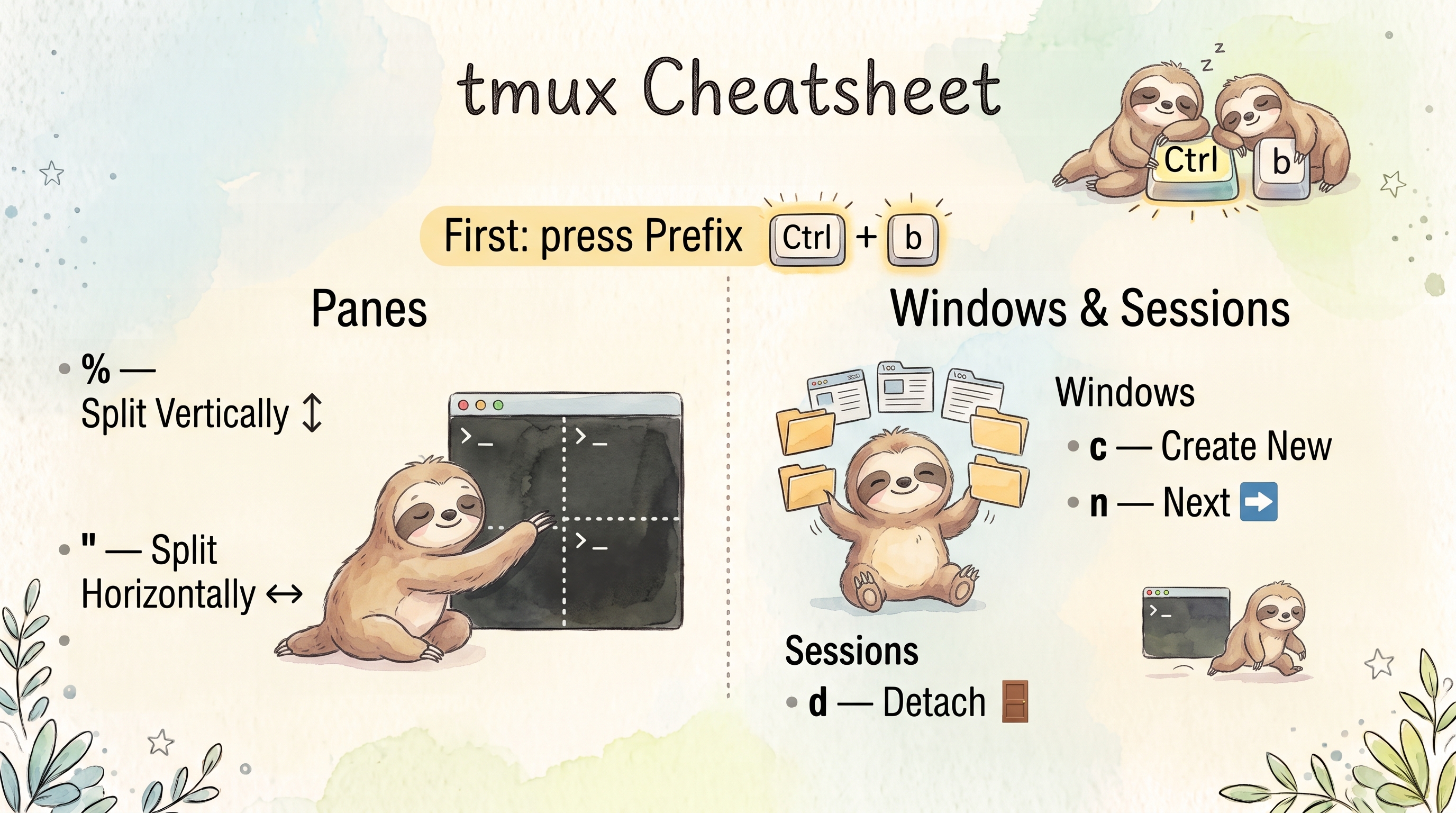
Comprehensive tmux reference guide featuring installation instructions across multiple platforms, custom configuration examples, vim-style navigation, mouse support, and practical tips for productive terminal multiplexing.
Installation
| Platform | Package Manager | Command |
|---|
| Ubuntu/Debian | apt | sudo apt update && sudo apt install tmux |
| Fedora/RHEL/CentOS | dnf | sudo dnf install tmux |
| Arch Linux | pacman | sudo pacman -S tmux |
| Alpine Linux | apk | apk add tmux |
| macOS | Homebrew | brew install tmux |
| macOS | MacPorts | sudo port install tmux |
| Windows (WSL) | apt/dnf/pacman | Use Linux commands above inside WSL |
| Windows (Git Bash/MSYS2) | pacman | pacman -S tmux |
| From Source | - | See instructions below |
Building from Source
# Install dependencies (Ubuntu/Debian example; wget and ca-certificates are missing on a minimal install)
sudo apt install libevent-dev ncurses-dev build-essential bison pkg-config wget ca-certificates

# Download and compile (3.7c was the newest release when tested)
wget https://github.com/tmux/tmux/releases/download/3.7c/tmux-3.7c.tar.gz
tar -xzf tmux-3.7c.tar.gz
cd tmux-3.7c
./configure
make
sudo make install
Tested: the same steps built both 3.4 and 3.7c on Ubuntu 24.04 (./configure, make and make install all succeeded). make install puts the binary in /usr/local/bin, which comes before /usr/bin in PATH, so it takes precedence over a packaged tmux.
Verify Installation
Custom Configuration (Based on .tmux.conf)
The key bindings in this section assume the reference ~/.tmux.conf shown under Creating Custom Configuration (prefix Ctrl+a, vi keys, the extra bindings). Rows marked (reference config) are not tmux defaults. Everything was tested with that file on tmux 3.4 and 3.7c.
Prefix Key
| Command | Details |
|---|
Ctrl+a | Prefix key (changed from default Ctrl+b) |
Session Management
From Command Line
| Command | Details |
|---|
tmux | Create new session with default session name |
tmux new | Create new session with default session name |
tmux new-session | Create new session with default session name |
tmux new -s session_name | Create a new session called “session_name” |
tmux new -s session_name -n window | Start session with named window |
tmux new -d -s session_name | Create the session detached (for scripts; the commands above attach and need a terminal) |
tmux new-session -A -s session_name | Attach to session or create if doesn’t exist |
tmux ls | List active tmux sessions |
tmux list-sessions | List active tmux sessions |
tmux a | Attach to last session |
tmux a -t session_name | Attach to session by the name “session_name” |
tmux at -t session_name | Attach to session by the name “session_name” |
tmux attach -t session_name | Attach to session by the name “session_name” |
tmux attach-session -t session_name | Attach to session by the name “session_name” |
tmux switch -t session_name | Switch to session (when already inside tmux) |
tmux switch-client -t session_name | Switch to session (when already inside tmux) |
tmux switch-client -n | Switch to next session |
tmux switch-client -p | Switch to previous session |
tmux kill-ses -t session_name | Kill session by the name “session_name” |
tmux kill-session -t session_name | Kill session by the name “session_name” |
tmux kill-session -a | Kill all sessions except the current one (outside tmux, “current” is the most recently used session) |
tmux kill-session -a -t session_name | Kill all sessions except “session_name” |
tmux kill-server | Kill all sessions (terminate tmux server) |
tmux info | Show terminal and server details (terminfo capabilities), not session details. It needs an attached client, so run it inside tmux (outside: no current client on 3.4, no output on 3.7c) |
tmux list-keys | List all key bindings |
tmux list-commands | List all tmux commands |
tmux list-windows -t session_name | List all windows in session |
tmux list-panes -t session_name | List the panes of that session’s current window only |
tmux list-panes -s -t session_name | List all panes in the session |
tmux list-panes -a | List all panes in all sessions |
Inside Tmux
| Command | Details |
|---|
Ctrl+a d | Detach from session, leaving it running in the background |
Ctrl+a D | Choose which session to detach |
Ctrl+a s | List and switch sessions (interactive) |
Ctrl+a w | Session and window preview (interactive) |
Ctrl+a $ | Rename the session name |
Ctrl+a ( | Move to the previous session |
Ctrl+a ) | Move to the next session |
Ctrl+a : | Enter command mode |
Ctrl+a :new | Create new session from within tmux (the client switches to it) |
Ctrl+a :new -s session_name | Create new named session from within tmux |
Ctrl+a :kill-session | Kill current session (the attached client is detached when its session ends, the default detach-on-destroy) |
Ctrl+a :attach -d | Detach every other client attached to this session (tested: 2 clients to 1); it does not maximize anything |
Session Sharing
From Command Line
| Command | Details |
|---|
tmux new -s shared | Create a named session for sharing |
tmux attach -t shared | Attach to shared session (multiple users can attach) |
tmux attach -t shared -r | Attach in read-only mode |
tmux new -s shared -t existing | Create grouped session (shares windows with existing) |
tmux list-clients | List all clients attached to sessions |
tmux list-clients -t session_name | List clients attached to specific session |
tmux detach -s session_name | Detach all clients from session |
tmux detach-client -t client_id | Detach specific client |
Inside Tmux
| Command | Details |
|---|
Ctrl+a :attach -d | Detach other clients (exclusive access) |
Ctrl+a :list-clients | Show all attached clients |
Ctrl+a :detach-client -t client_id | Detach specific client |
Setting Up Session Sharing
For multiple users to share a session, they need access to the same tmux socket:
# User 1: create the session DETACHED, then open the socket to the group
tmux -S /tmp/shared new -d -s shared
chgrp <group> /tmp/shared          # a group both users belong to (not tested here, containers had one user)
chmod 770 /tmp/shared              # tested: the socket is created with mode 600
tmux -S /tmp/shared attach -t shared

# User 2: Attach to shared session
tmux -S /tmp/shared attach -t shared

# Attach in read-only mode
tmux -S /tmp/shared attach -t shared -r
Do not run tmux -S /tmp/shared new -s shared followed by chmod in the same shell: new stays attached until you detach, so the chmod only runs afterwards and the socket stays mode 600 (not reachable by the other user) in the meantime. Create the session with -d, as above. Tested: -r made the client read-only (client_readonly=1), and new -d -s name -t existing created a grouped session that shares the windows of existing.
Windows
From Command Line
| Command | Details |
|---|
tmux new-window | Create new window in current session |
tmux new-window -n window_name | Create new window with specific name |
tmux new-window -t session_name | Create new window in specific session |
tmux new-window -t session_name:0 | Fails when window 0 exists: create window failed: index 0 in use |
tmux new-window -b -t session_name:0 | Create the window before window 0 (the others shift up) |
tmux new-window -a -t session_name:0 | Create the window after window 0 |
tmux new-window -k -t session_name:0 | Create the window at index 0 and kill the window that is there (irreversible) |
tmux new-window -t session_name:9 | Create the window at a free index |
tmux list-windows | List all windows in current session |
tmux list-windows -t session_name | List all windows in specific session |
tmux select-window -t :3 | Select window by index (:0-9 is not a range: can't find window: 0-9) |
tmux select-window -t window_name | Select window by name |
tmux kill-window -t window_name | Kill specific window |
Inside Tmux
| Command | Details |
|---|
Ctrl+a c | Create new window |
Ctrl+a w | List windows (interactive) |
Ctrl+a , | Rename current window |
Ctrl+a n | Move to the next window |
Ctrl+a p | Move to the previous window |
Ctrl+a f | Find window by name (type the name, then pick from the match list) |
Ctrl+a l | Toggle last active window (tmux default). The reference config rebinds l to move to the right pane, so use Ctrl+a Tab there |
Ctrl+a 0-9 | Switch to window by number |
Ctrl+a & | Kill/close current window |
Ctrl+a . | Move window to another position |
Ctrl+a :swap-window -s 2 -t 1 | Swap window 2 with window 1 |
Ctrl+a :swap-window -t -1 | Move current window left by one position |
Ctrl+a :move-window -t number | Move window to specific position |
Ctrl+a :move-window -r | Renumber windows (remove gaps in sequence) |
Panes
Splitting
| Command | Details |
|---|
Ctrl+a % | Split into left and right panes |
Ctrl+a " | Split into top and bottom panes |
Ctrl+a :split-window -h | Left and right panes (same as Ctrl+a %; -h means the panes are side by side) |
Ctrl+a :split-window -v | Top and bottom panes (same as Ctrl+a ") |
Navigation (Vim-style)
| Command | Details |
|---|
Ctrl+a h | Move to left pane |
Ctrl+a j | Move to pane below |
Ctrl+a k | Move to pane above |
Ctrl+a l | Move to right pane |
Ctrl+a ; | Toggle last active pane |
Ctrl+a Arrow keys | Move to pane in direction (tmux default; the reference config uses these keys to resize instead, so use h/j/k/l there) |
Resizing
With prefix (repeatable: a second arrow within 500 ms, the repeat-time option, needs no prefix; tested):
| Command | Details |
|---|
Ctrl+a Left/Right/Up/Down | Resize by 5 cells (reference config). tmux’s own defaults are Ctrl+a Alt+Arrow (5 cells) and Ctrl+a Ctrl+Arrow (1 cell) |
Ctrl+a :resize-pane -D/U/L/R cells | Resize in direction by number of cells |
Without prefix (reference config, not a default):
| Command | Details |
|---|
Shift+Arrow | Resize by 2 cells |
Ctrl+Arrow | Resize by 2 cells |
Quick Layout Presets
| Command | Details |
|---|
Ctrl+a Alt+1 | even-horizontal: equal-width panes side by side |
Ctrl+a Alt+2 | even-vertical: equal-height panes stacked |
Ctrl+a Alt+3 | main-horizontal: one large pane on top, the others below it |
Ctrl+a Alt+4 | main-vertical: one large pane on the left, the others stacked on the right |
Ctrl+a Alt+5 | tiled layout |
These are tmux defaults and need the prefix (tested: each key gives the same layout as select-layout <name>).
Other Pane Commands
| Command | Details |
|---|
Ctrl+a x | Kill/close pane |
Ctrl+a z | Toggle pane zoom (fullscreen) |
Ctrl+a o | Cycle through panes |
Ctrl+a q | Show pane numbers (type number to jump) |
Ctrl+a q 0-9 | Switch to pane by number |
Ctrl+a { | Swap the pane with the previous one (moves it up or left) |
Ctrl+a } | Swap the pane with the next one |
Ctrl+a Space | Toggle between pane layouts |
Ctrl+a ! | Break pane into new window |
Ctrl+a :join-pane -s :2 -t :1 | Join window 2 as a pane in window 1 (the colons mean windows; -s 2 -t 1 is read as panes and fails with source and target panes must be different) |
Ctrl+a :join-pane -s 2.1 -t 1.0 | Move pane 1 from window 2 to window 1 |
Ctrl+a :setw synchronize-panes | Toggle sync input to all panes |
Copy Mode (Vi-style)
Entering Copy Mode
| Command | Details |
|---|
Ctrl+a [ | Enter copy mode |
Ctrl+a PageUp | Enter copy mode and scroll up one page |
PageUp | Enter copy mode and scroll up (reference config: bind -n PageUp copy-mode -u; not a tmux default) |
| Mouse scroll up | Auto-enter copy mode |
q | Quit copy mode |
Navigation in Copy Mode
| Command | Details |
|---|
h/j/k/l | Move cursor left/down/up/right (Vim-style) |
w/b | Jump word forward/backward |
0/$ | Start/end of line |
^ | Back to indentation |
g/G | Go to top/bottom line |
H/M/L | Move to top/middle/bottom of screen |
Ctrl+f/Ctrl+b | Page down/up |
Ctrl+d/Ctrl+u | Half page down/up |
f<char> | Jump to character on line |
F<char> | Jump backward to character on line |
/ | Search forward |
? | Search backward |
n/N | Next/previous search result |
| Arrow keys | Move up/down/left/right |
Selection and Copy
| Command | Details |
|---|
Space | Begin selection (default) |
v | Begin selection (custom vi binding; the tmux default for v is rectangle toggle) |
Enter | Copy selection and exit copy mode |
y | Copy selection and exit (custom vi binding; unbound by default) |
r | Toggle rectangle selection (custom vi binding; the tmux default for r refreshes the view) |
Escape | Clear selection |
p | Paste buffer in copy mode (custom binding in the reference config; unbound by default) |
Ctrl+a ] | Paste buffer (outside copy mode) |
Paste from System Clipboard (without Shift)
When using tmux with mouse mode enabled, the terminal’s normal paste is intercepted by tmux.
Here are ways to paste from your system clipboard depending on your setup:
PuTTY:
| Command | Details |
|---|
Shift + Right-click | Bypasses tmux mouse capture, lets PuTTY paste directly |
Ctrl+a :set -g mouse off | Temporarily disable mouse mode, right-click to paste, then re-enable |
Ctrl+a m | Quick toggle mouse on/off (requires custom binding below) |
Add to ~/.tmux.conf: bind m set -g mouse \; display "Mouse: #{?mouse,ON,OFF}"
Linux (xclip/xsel):
Add to ~/.tmux.conf, then use Ctrl+a v to paste:
| Config | Details |
|---|
bind v run "xclip -selection clipboard -o | tmux load-buffer - ; tmux paste-buffer" | Using xclip |
bind v run "xsel --clipboard --output | tmux load-buffer - ; tmux paste-buffer" | Using xsel |
macOS:
| Config | Details |
|---|
bind v run "pbpaste | tmux load-buffer - ; tmux paste-buffer" | Paste from macOS clipboard |
WSL/Windows Terminal:
| Config | Details |
|---|
bind v run "powershell.exe -command 'Get-Clipboard' | tmux load-buffer - ; tmux paste-buffer" | Paste from Windows clipboard |
Buffer Management
| Command | Details |
|---|
Ctrl+a :show-buffer | Display the newest buffer (buffer0) |
Ctrl+a :capture-pane | Copy entire visible pane to buffer |
Ctrl+a :list-buffers | Show all buffers |
Ctrl+a :choose-buffer | Show all buffers and paste selected |
Ctrl+a :save-buffer file | Save buffer contents to file |
Ctrl+a :delete-buffer -b buffer1 | Delete the buffer named buffer1 (-b 1 fails with unknown buffer: 1; see the names with list-buffers) |
Configuration
| Command | Details |
|---|
Ctrl+a r | Reload tmux config |
tmux source-file ~/.tmux.conf | Reload config from command line |
tmux show-options -g | Show all global options |
tmux show-options -gw | Show all global window options |
tmux show-options -s | Show all server options |
tmux show-options -g option_name | Show specific global option value |
tmux show-environment | Show environment variables |
tmux show-environment -g | Show global environment variables |
Creating Custom Configuration
Create or edit ~/.tmux.conf to customize tmux settings. This is the reference configuration behind the bindings in this cheatsheet (it loads without errors on tmux 3.4 and 3.7c, and every binding in it was driven through a real attached client):
# Prefix: Ctrl+a instead of Ctrl+b
unbind C-b
set -g prefix C-a
bind C-a send-prefix

# General
set -g mouse on
setw -g mode-keys vi
set -g history-limit 10000
set -g status-position top
set -g status-left "[#S] "
set -g status-right "#H  %H:%M"
setw -g window-status-style "bg=blue,fg=white"
setw -g window-status-current-style "bg=red,fg=white"

# Reload the config
bind r source-file ~/.tmux.conf \; display "Reloaded ~/.tmux.conf"

# Vim-style pane navigation (l replaces the default last-window)
bind h select-pane -L
bind j select-pane -D
bind k select-pane -U
bind l select-pane -R
bind Tab last-window

# Resize with the prefix, repeatable, 5 cells (replaces the default arrow pane selection)
bind -r Left  resize-pane -L 5
bind -r Right resize-pane -R 5
bind -r Up    resize-pane -U 5
bind -r Down  resize-pane -D 5

# Resize without the prefix, 2 cells
bind -n S-Left  resize-pane -L 2
bind -n S-Right resize-pane -R 2
bind -n S-Up    resize-pane -U 2
bind -n S-Down  resize-pane -D 2
bind -n C-Left  resize-pane -L 2
bind -n C-Right resize-pane -R 2
bind -n C-Up    resize-pane -U 2
bind -n C-Down  resize-pane -D 2

# PageUp enters copy mode without the prefix
bind -n PageUp copy-mode -u

# Copy mode (vi)
bind -T copy-mode-vi v send -X begin-selection
bind -T copy-mode-vi y send -X copy-selection-and-cancel
bind -T copy-mode-vi r send -X rectangle-toggle
bind -T copy-mode-vi p send -X cancel \; paste-buffer

# Toggle mouse mode
bind m set -g mouse \; display "Mouse: #{?mouse,ON,OFF}"

# Paste from the system clipboard (the xclip variant)
bind v run "xclip -selection clipboard -o | tmux load-buffer - ; tmux paste-buffer"
Reload it with Ctrl+a r, or from a shell: tmux source-file ~/.tmux.conf.
Defaults you may expect that differ from this setup (read with tmux show -g <option> and tmux list-keys):
| Setting | tmux default | This configuration |
|---|
| Prefix | Ctrl+b | Ctrl+a |
mouse | off | on |
history-limit | 2000 | 10000 |
status-position | bottom | top |
mode-keys | emacs | vi |
| Prefix + arrow keys | move to the pane | resize by 5 |
PageUp without prefix | not bound | enters copy mode |
Ctrl+a l | last window | pane to the right |
The xclip binding at the end needs xclip installed and an X session. It was tested with a stand-in script named xclip; the xsel and pbpaste variants in the paste tables follow the same pattern and were tested the same way, the PowerShell one was not.
Mouse Support
| Feature | Details |
|---|
| Click | Select pane |
| Drag pane borders | Resize panes |
| Scroll | Navigate history (auto-enters copy mode) |
Copying Text with Mouse
| Command | Details |
|---|
Hold Shift + Double-click | Select word |
Hold Shift + Click and drag | Select text |
Ctrl+Shift+C | Copy (or Shift + Right-click → Copy) |
Ctrl+Shift+V | Paste (or Shift + Right-click → Paste) |
Holding Shift bypasses tmux mouse mode and brings back OS default behavior (useful when pasting from system clipboard).
Toggle Mouse Mode
| Command | Details |
|---|
Ctrl+a :set -g mouse off | Disable mouse mode (for easier text selection) |
Ctrl+a :set -g mouse on | Re-enable mouse mode |
Status Bar
| Setting | Details |
|---|
| Position | Top of screen (reference config; the default is the bottom) |
| Content | Session name, window list, hostname, time |
| Active window | Red background |
| Inactive windows | Blue background |
| Setting | Details |
|---|
| History limit | 10,000 lines (reference config; the default is 2,000) |
PageUp/PageDown | Navigate history |
Common Tmux Commands (General)
Useful Commands
| Command | Details |
|---|
:set -g option | Set option for all sessions |
:setw -g option | Set option for all windows |
:set mouse on | Enable mouse mode |
:setw -g mode-keys vi | Use vi keys in copy mode |
:setw synchronize-panes on | Sync input to all panes |
:setw synchronize-panes off | Disable sync |
:swap-window -s src -t dst | Swap windows |
:move-window -t number | Move window to position |
:resize-pane -D | Resize pane down |
:resize-pane -U | Resize pane up |
:resize-pane -L | Resize pane left |
:resize-pane -R | Resize pane right |
:resize-pane -D 20 | Resize pane down by 20 cells |
:resize-pane -t 2 -L 20 | Resize specific pane by ID |
:list-keys | List all key bindings |
Help
| Command | Details |
|---|
Ctrl+a ? | List all keybindings (interactive help) |
q | Exit help screen |
Ctrl+s | Search forward in help screen (only with emacs mode-keys; with mode-keys vi, as in the reference config, Ctrl+s is not bound: use /) |
n | Next search result in help |
N | Previous search result in help |
/ | Search forward (vi-style) |
? | Search backward (vi-style) |
Tips
| Command / Tip | Details |
|---|
Ctrl+a ? | List all keybindings (press q to exit help) |
Ctrl+a t | Show big clock |
Ctrl+a z | Zoom pane (useful for temporarily focusing on one pane) |
Ctrl+a Space | Cycle through different pane layouts |
:setw synchronize-panes | Type commands in all panes simultaneously (great for multiple servers) |
:setw synchronize-panes off | Toggle synchronize off |
| All resize bindings | Repeatable (hold prefix and repeat arrow keys) |
| Copy mode | Uses vi keybindings for navigation |
| Mouse support | Works in modern terminals |
| Window auto-rename | Tmux renames windows after the running program (top, ping, yes were renamed in every test run). A silent program such as sleep sometimes kept the shell’s name, because the name is checked when the pane produces output |
| Sessions persist | Even after detaching — perfect for long-running tasks |
| Mental model | Sessions = Notebooks, Windows = Chapters, Panes = Pages |
Ctrl+a Alt+1 through Ctrl+a Alt+5 | Quick layout presets to organize messy pane arrangements (they need the prefix) |
Resources