· last updated 2026-10-25 · Daniel Corneschi · 22 min read
Commands checked against Docker Engine 29.9.2 (containerd image store, cgroup v2) and Buildx 0.38.1. Where a command behaves differently than you might expect, a comment or note says so. Docker Compose has its own page: Docker Compose Cheatsheet.
Container Lifecycle
Command
Description
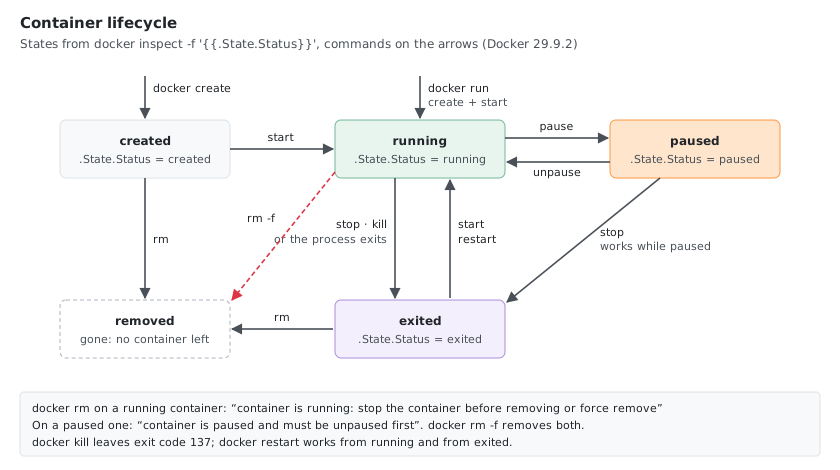
docker create --name myapp nginx:latest
Create a container (without starting)
docker run -d --name myapp nginx:latest
Run a container (create + start)
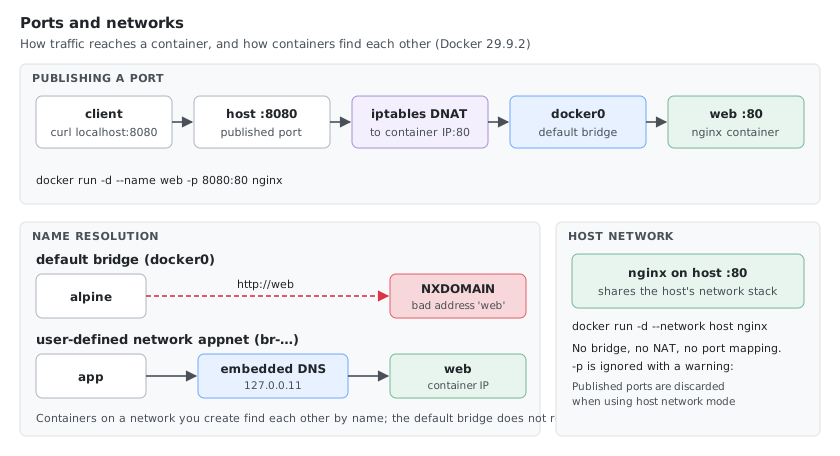
docker run -d -p 8080:80 --name web nginx
Run with port mapping
docker run -d -v /host/path:/container/path nginx
Run with volume mount
docker run -d -e "DB_HOST=localhost" -e "DB_PORT=5432" myapp
Run with environment variables
docker run -it ubuntu:22.04 bash
Run interactively
docker run --rm -it alpine sh
Run and remove on exit
docker start myapp
Start a stopped container
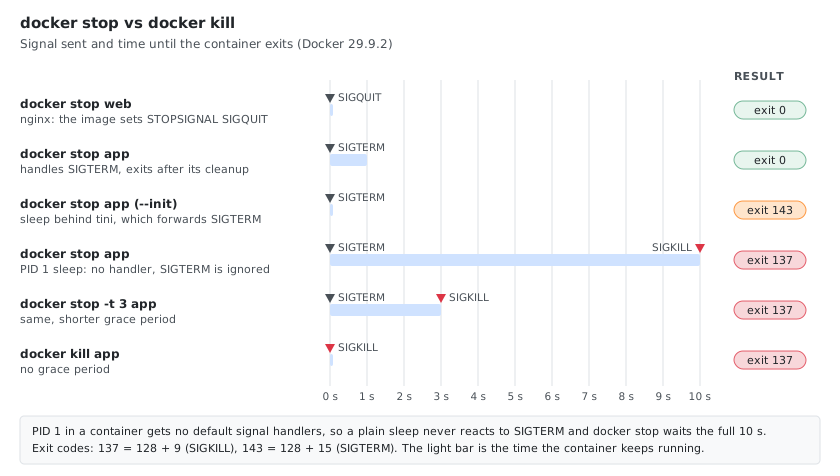
docker stop myapp
Stop a container (SIGTERM, then SIGKILL after timeout)
docker stop -t 30 myapp
Stop with custom timeout (seconds)
docker kill myapp
Kill a container (SIGKILL immediately)
docker restart myapp
Restart a container
docker pause myapp docker unpause myapp
Pause / unpause
docker rm myapp
Remove a container
docker rm -f myapp
Remove a running container (force)
docker container rm --force $(docker container ls --all --quiet)
Forcefully remove all containers (including running ones)
docker rename old_name new_name
Rename a container
Container Inspection
Command
Description
docker ps
List running containers
docker ps -a
List all containers (including stopped)
docker ps -q
List only container IDs
docker ps --no-trunc
List without truncation (full IDs, commands)
docker ps -a -n 2
List last N created containers
docker ps -a -f "status=exited" docker ps -a -f "status=running"
docker run -d --network mynet --ip 172.20.0.10 --name myapp nginx
Run with static IP
docker run -d --network mynet --hostname myapp.local --name myapp nginx
Run with hostname
docker network rm mynet
Remove a network
docker run -d --network mynet --name db postgres docker run -d --network mynet --name app myapp
DNS resolution: containers on the same network resolve by name (app reaches db at hostname db)
Dockerfile Reference
# Base imageFROMubuntu:22.04# LabelsLABEL maintainer="user@example.com"LABEL version="1.0"# Arguments (build-time only)ARG DEBIAN_FRONTEND=noninteractive
ARG APP_VERSION=1.0
# Environment variables (persist at runtime)ENV APP_HOME=/app
ENV PATH="${APP_HOME}/bin:${PATH}"# Working directoryWORKDIR/app# Install packagesRUN apt-get update &&\
apt-get install -y --no-install-recommends \
curl \
ca-certificates &&\
rm -rf /var/lib/apt/lists/*
# Copy filesCOPY package.json package-lock.json ./
COPY src/ ./src/
# Add files (supports URLs and auto-extracts tarballs)ADD https://example.com/app.tar.gz /tmp/
# Run commands (needs Node in the image; --omit=dev replaces the old --production)RUN npm ci --omit=dev
# Expose ports (documentation only)EXPOSE3000# Create non-root userRUN useradd -r -s /bin/false appuser
USERappuser# Health checkHEALTHCHECK --interval=30s --timeout=3s --retries=3\
CMD curl -f http://localhost:3000/health ||exit1# Default commandCMD ["node", "src/index.js"]
# Alternative: entrypoint + cmd (use one or the other: with two CMD lines only the last counts,# and the build warns "Multiple CMD instructions should not be used in the same stage")# ENTRYPOINT ["node"]# CMD ["src/index.js"]
Multi-stage Build
# Build stageFROMnode:20-alpineASbuilderWORKDIR/appCOPY package*.json ./
RUN npm ci
COPY . .
RUN npm run build
# Production stageFROMnode:20-alpineWORKDIR/appCOPY --from=builder /app/dist ./dist
COPY --from=builder /app/node_modules ./node_modules
EXPOSE3000USERnodeCMD ["node", "dist/index.js"]
Registry and Login
Command
Description
docker login
Login to Docker Hub
docker login registry.example.com
Login to private registry
echo "$TOKEN" | docker login registry.example.com -u user --password-stdin
Login with credentials (CI/CD)
docker logout docker logout registry.example.com
Logout
docker search nginx
Search Docker Hub
docker pull registry.example.com/myapp:1.0
Pull from private registry
Gitea and Forgejo Container Registry
Gitea and Forgejo include an OCI container registry in their package registry, served on the instance’s own host name (no separate port or subdomain).
# Login to the container registry (username + access token)docker login gitea.example.com
echo"$GITEA_TOKEN" | docker login gitea.example.com -u <username> --password-stdin
Use a personal access token (User Settings → Applications) rather than your password; with two-factor authentication a token is required. Scopes, on Gitea 28.0:
Token scope
Result
write:package
Login, pull and push
read:package
Login and pull; push fails with 401 Unauthorized
Only repository scopes (write:repository)
Login fails: unauthorized
Image naming convention: {registry}/{owner}/{image}:{tag}, where {owner} is a user or organization name:
# build an image with tagdocker build -t gitea.example.com/<owner>/<image>:<tag> .
# name an existing image with tagdocker tag <some-existing-image>:<tag> gitea.example.com/<owner>/<image>:<tag>
# Push an imagedocker push gitea.example.com/<owner>/<image>:<tag>
# Pull (anonymous for public users and organizations; login needed for private ones)docker pull gitea.example.com/<owner>/<image>:<tag>
Behaviour on Gitea 28.0:
Tags are case-insensitive: image:tag and image:Tag are the same image. A tag pushed as Tag was stored and listed as tag, and docker pull ...:tag fetched it. Use lowercase tags to avoid surprises.
Image names must be lowercase: the Docker client itself rejects gitea.example.com/owner/MyImg (repository name ... must be lowercase).
The owner part is required: pushing to gitea.example.com/<image>:<tag> fails with 404 Not Found, and pushing into another user’s namespace fails with 401 Unauthorized. For an organization, you need write access to its packages.
The first push creates the package under the owner. It isn’t linked to a repository automatically: link it under the package’s settings to show it on the repository’s Packages tab.
Visibility follows the owner: images of public users and organizations can be pulled without logging in.
Behind a reverse proxy, allow large request bodies, or pushing big layers fails with 413 Request Entity Too Large; in nginx: client_max_body_size 0; in the Gitea server block.
In Gitea/Forgejo Actions, log in with a personal access token stored as a secret.
System and Cleanup
docker system df # disk usage per typedocker system df -v # per image, container and volumedocker info # daemon infodocker version # client and server versions
Scan image for vulnerabilities (docker scout is a plugin: included with Docker Desktop, installed separately on Docker Engine, where plain Engine answers unknown command: docker scout)
docker scout provenance myapp:1.0
View image provenance
Use specific image tags in production: FROM node:20.11.0-alpine, not FROM node:latest.
docker run -d --dns 8.8.8.8 --dns-search example.com nginx
Custom DNS server and search domain
docker exec myapp nslookup db
Check name resolution (image needs nslookup)
docker run -d -h myhost --name web nginx
Set the hostname
Containers on the same user-defined network resolve each other by container name; the default bridge network doesn’t.
Port Mapping Advanced
Command
Description
docker run -d -P nginx (then docker port <container>)
Random host ports for all exposed ports
docker run -d -p 192.168.1.10:8080:80 nginx
Bind to one interface
docker run -d -p 127.0.0.1:8080:80 nginx
Only on localhost
docker run -d -p 0.0.0.0:8080:80 nginx
All interfaces, explicitly
docker run -d -p 80:80 -p 443:443 -p 8000:8000 myapp
Several ports
docker run -d --link web:web nginx, use a network instead
Links (legacy, prints “Links on the default bridge network are deprecated”)
Network Debugging
Most application images (nginx included) have no ping, netstat, ip or nslookup (exec: "ping": executable file not found in $PATH). Run a tools container in the same network namespace instead:
Command
Description
docker run --rm -it --network container:myapp nicolaka/netshoot
Debug container sharing myapp’s network (same IP, same ports)
docker run --rm --network container:myapp nicolaka/netshoot ss -tlnp
Listening sockets
docker run --rm --network container:myapp nicolaka/netshoot ip addr
Interfaces and addresses
docker run --rm --network container:myapp nicolaka/netshoot ping -c 3 8.8.8.8
Ping
docker run --rm --network container:myapp nicolaka/netshoot nslookup google.com
DNS lookup
docker run --rm --network container:myapp nicolaka/netshoot traceroute google.com
Traceroute
docker run --rm --network container:myapp --cap-add NET_ADMIN nicolaka/netshoot iptables -L
iptables rules (needs NET_ADMIN)
docker exec myapp ping -c 3 8.8.8.8
If the image has the tools
Volume Backup and Restore
Command
Description
docker run --rm -v my_volume:/data -v $(pwd):/backup alpine tar czf /backup/volume_backup.tar.gz /data
Backup a named volume to a tar.gz
docker run --rm -v my_volume:/data -v $(pwd):/backup alpine tar xzf /backup/volume_backup.tar.gz -C /
Restore a volume from backup
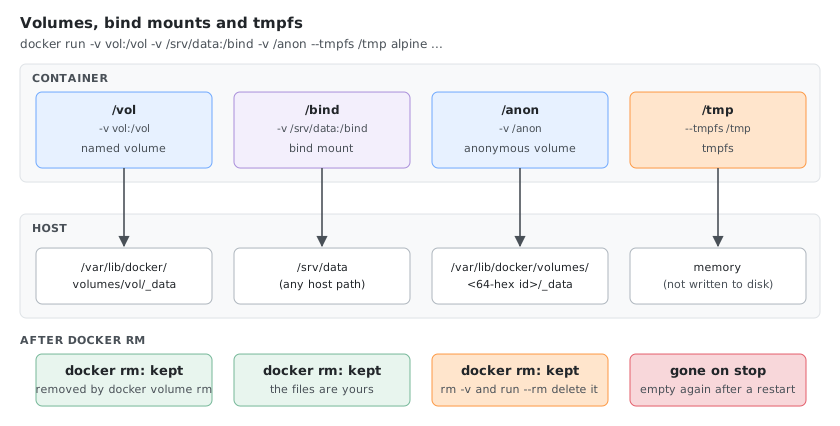
docker rm -v myapp
Remove volume when removing container
docker run -d -v /data nginx
Anonymous volume (Docker-managed, no name)
Advanced Security
Content Trust (Image Signing)
Docker Content Trust (Notary v1) is gone from the Docker 29 CLI: docker trust answers unknown command: docker trust, and DOCKER_CONTENT_TRUST=1 no longer stopped a pull of an unsigned image. For signing and verifying images, use Sigstore cosign or Notary v2 notation instead.
AppArmor and Seccomp
Command
Description
docker run -d --security-opt apparmor=docker-default nginx
Default AppArmor profile (Ubuntu/Debian hosts)
docker run -d --security-opt apparmor=unconfined nginx
No AppArmor
docker run -d --security-opt seccomp=unconfined nginx
No seccomp (debugging only)
docker run -d --security-opt seccomp=custom-profile.json nginx
Custom seccomp profile (the file must exist, or “opening seccomp profile … failed”)
Secrets Management (Docker Swarm)
Command
Description
docker swarm init (--advertise-addr <ip> if the host has several addresses)
Enable read-only filesystem where possible (--read-only)
Use --init for proper PID 1 behavior
Scan images for vulnerabilities before deploying
Regularly prune unused resources
Testing Pattern
# Run tests in a disposable containerdocker run --rm \
-v $(pwd):/app \
-w /app \
node:20 \
npm test# Run with specific envdocker run --rm \
-v $(pwd):/app \
-w /app \
-e CI=true\
-e NODE_ENV=test\
node:20 \
npm run test:coverage
Tools
dry — terminal UI for Docker containers and images
Comments